Action Nodes
You can use Action nodes to perform a specific task such as calling a tool, set a variable, call an api or switch to another flow.
1. Tool Node
In tool node, you will input a prompt to ask the chatbot to execute that prompt on user's input. The result of the execution is in JSON format and can be stored in a variable for later usage.
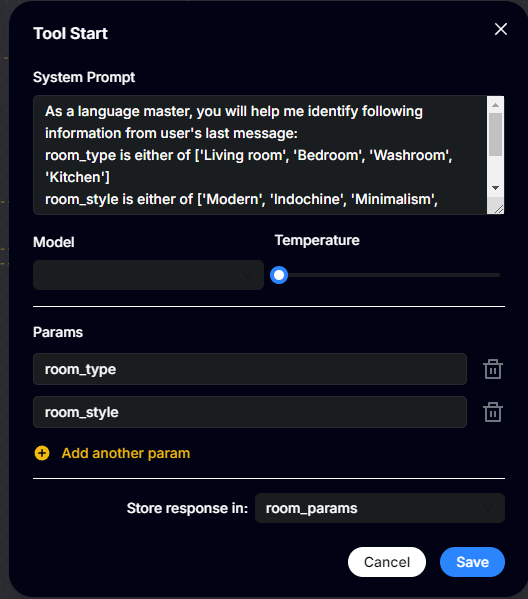
For example, you can ask the chatbot the detect email address, name or telephone number from user's input message then store them in corresponding variable names.
You can also specify the LLM version to run the prompt. Currently, we support following LLM models: gpt-4o and gpt-3.5-turbo-0125
2. Set Variable Node
Use the variable node to assign values to a new variable which has not been previously used to collect/store data.
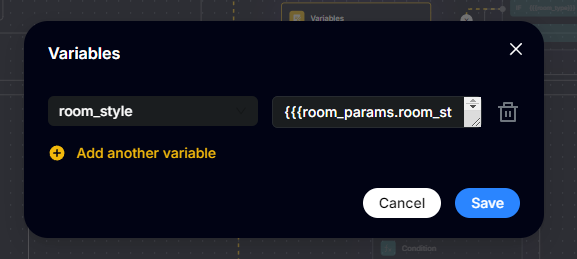
There are two ways by which you can assign values:
- Assign a static value
- In Name, select a variable
- In Value, enter any value you want.
- Assign a dynamic value
- In Name, select a variable
- In Value, enter variable name warpped in triple curly braces (e.g. {{{variable_name}}})
3. Call API Node
With the API node, you can connect to an API at a specific point in a flow to send and get responses from a third-party system outside of your chatbot.
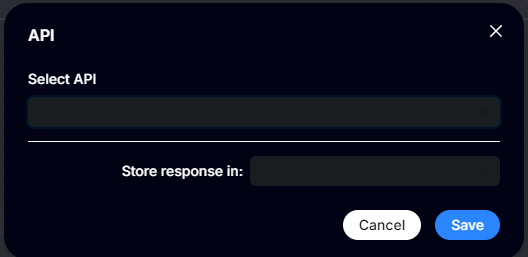
You must choose the created API to use. To learn more about how to create an API, Click here
4. Switch Flow Node
This node allows you to exit the current flow and launch a different one. Once the conversation switches to the new flow, you cannot add any further nodes beyond this point.
For example, you can use this to transition users from an initial greeting flow to a feedback flow, ensuring a seamless experience.
To use this, add the node and select the desired flow from the flows drop-down menu.