Agent Flow Usage Guide
This guide provides comprehensive instructions on how to use Agent Flow to create intelligent, AI-powered chatbots in DxConnect Studio.
What is an Agent?
An Agent in DxConnect is an AI-powered assistant that can:
- Understand natural language and context
- Handle complex, multi-turn conversations
- Access and retrieve information from various data sources
- Learn and improve from interactions
- Perform specific tasks autonomously
Think of an agent as a smart virtual employee who can understand what users want and help them achieve their goals through natural conversation.
Getting Started
Accessing Agent Flow
- Log in to your DxConnect dashboard
- Navigate to Studio from the main menu
- Click on the Builder tab
- Select Agent Flow mode
Initial AI Configuration
Before creating agents, you need to configure your AI settings:
-
Navigate to the Settings tab
-
Click on AI Settings to configure your chatbot:
- AI Description: Define what your AI does and its main purpose
- Bot Style: Choose the conversation style (Professional, Friendly, Casual, etc.)
-
For detailed configuration options, refer to the AI Settings
-
After completing the AI setup, return to the Builder tab to create your agents
Creating Your First Agent
Once your AI is configured, you can start building agents:
- In the Builder, click Create New Agent
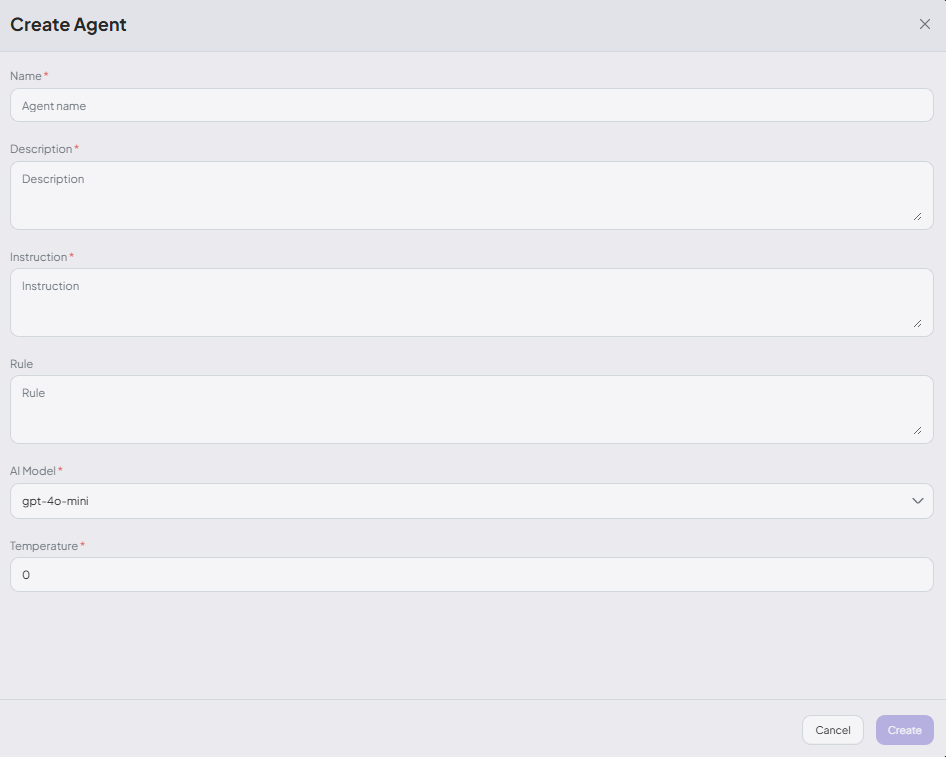
- Define your agent by filling in its key components — name, description, rules, and instructions. These elements work together to establish the agent’s identity, behavior, and decision-making boundaries within the system.
Key Components of an Agent
When creating an agent, you'll need to configure these essential components:
-
Agent Name: The unique identifier used to reference the agent.
-
Description: Defines the agent's role and scope of responsibilities. This helps the orchestrator determine which agent is most appropriate to handle a user request.
-
Rules: A set of operational principles or conditions that the agent follows when making decisions or taking actions.
-
Instructions: Guide the agent on how to interpret input, when to use tools, and how to behave. Include rules like only using user-provided parameters, avoiding assumptions, and returning tool output without extra commentary.
-
AI Mode & Temperature: Controls how creative or predictable the agent’s responses are. LLMs help the agent understand intent, extract key information, build workflows, and assist with decision-making.
Example Use Case
Let’s walk through an example of creating a Customer Support Agent:
Agent Configuration:
Name: CustomerSupportAgent
Description: Handles customer inquiries related to orders, shipping, returns, and product details. This agent is integrated with tools such as the order management system and the shipping tracking API.
Rules:
- Always verify customer identity before providing order information.
- Escalate to a human agent if a refund request exceeds $500.
- Only provide tracking details for orders placed within the last 90 days.
- The agent must not process or update payment methods.
Instructions:
- Only use parameters explicitly provided in the user's request; do not make assumptions or infer missing information.
- If the request is ambiguous, outside the agent’s scope, or requires confirmation, do not trigger any tool — instead, ask the user for clarification or confirmation.
- After executing a tool, return only the output generated by the tool — do not add commentary, interpretation, or additional explanation.
When Do Agents Need Tools?
After defining your agent, you need to determine when tools are necessary for execution. Tools extend your agent's capabilities beyond conversation, enabling them to perform actual tasks.
Understanding Tools in Agent Flow
Tools are essential components that extend the capabilities of an agent, enabling it to perform meaningful actions beyond natural language understanding. They act as functional bridges between the agent and external systems—allowing agents to retrieve data, trigger operations, and automate workflows with precision. With the tool invocation capability powered by Large Language Models (LLMs), agents can dynamically identify and activate the appropriate tool at runtime, ensuring adaptability and accuracy in responding to user requests.
When to Use Tools
Your agent needs tools when:
-
Data Access Required
- Fetching customer records
- Checking inventory levels
- Retrieving order status
-
Actions Beyond Conversation
- Booking appointments
- Processing refunds
- Updating user profiles
-
External System Integration
- Connecting to third-party APIs
- Accessing company databases
- Integrating with business systems
-
Complex Calculations
- Price calculations with discounts
- Shipping cost estimates
- Date/time computations
Example: Customer Support Agent with Tools
Let's expand our Customer Support Agent example with tools:
Without Tools (Limited capabilities):
- Can only provide general information
- Cannot check specific order status
- Cannot process any actions
With Tools (Full capabilities):
Tools configured:
1. OrderLookupTool - Retrieves order information
2. ShippingTrackerTool - Gets real-time shipping status
3. RefundProcessorTool - Initiates refund requests
4. TicketCreatorTool - Creates support tickets
How it works:
- User: "Where is my order #12345?"
- Agent recognizes order inquiry → Calls
OrderLookupTool - Tool returns order details → Agent calls
ShippingTrackerTool - Tool returns tracking info → Agent provides update to user
Tools Guide
For detailed information on creating, configuring, and managing tools, see our comprehensive tools-guide