🤖 Guide to Managing AIs in DxConnect
This guide walks you through the steps to view and manage AI agents associated with each user in the DxConnect system.
Step 1: Go to the Users Section
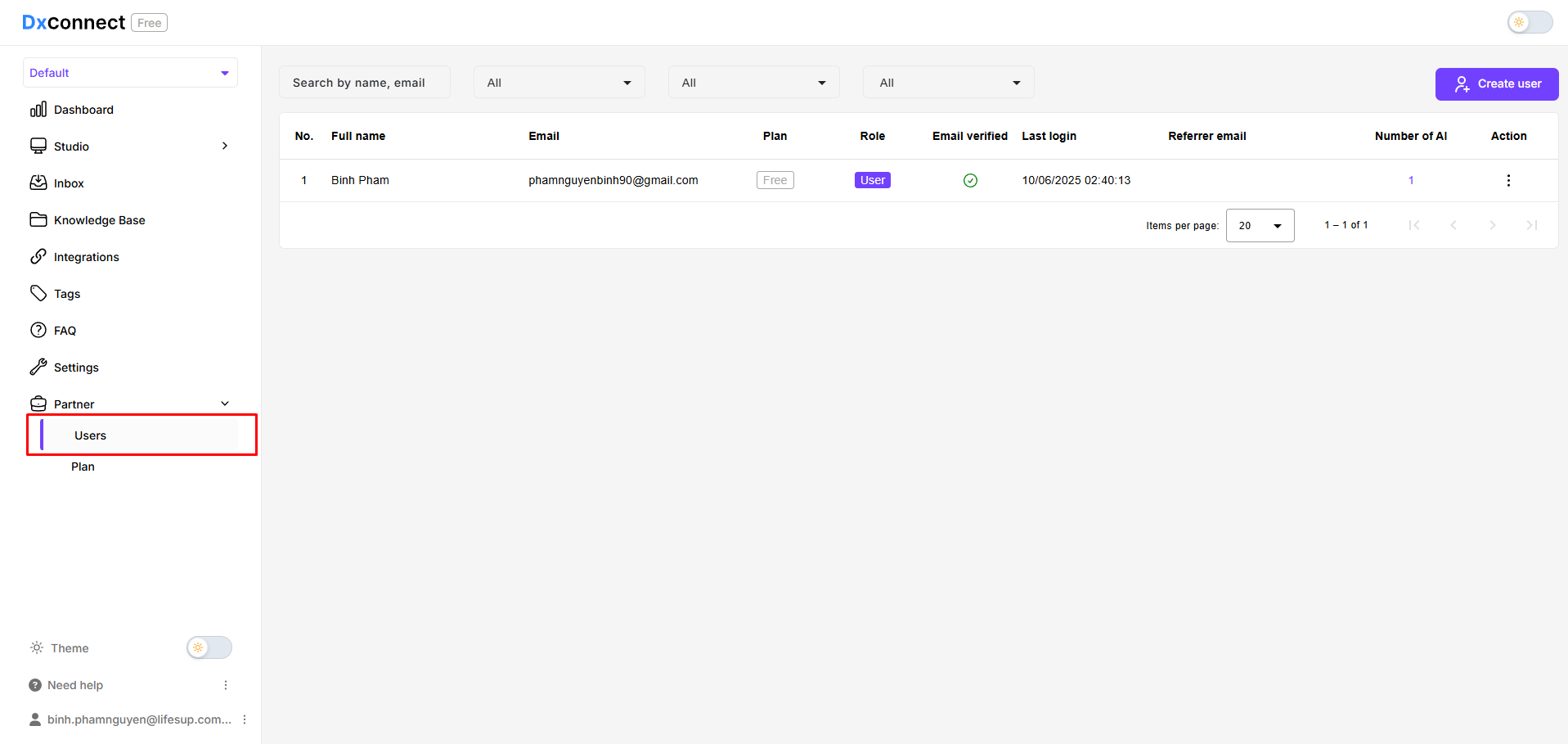
- From the DxConnect dashboard, navigate to the sidebar on the left.
- Scroll down and locate the Partner section.
- Click on Users (📍 highlighted in red in the UI).
Step 2: Find the Target User
In the Users table, you’ll see a list of users with the following columns:
- Full name
- Plan
- Role
- Email verified
- Last login
- Referrer email
- Number of AI
Look for the user whose AIs you want to manage.
Step 3: Access the AI List

- In the Number of AI column, click the number associated with the user (e.g.,
1). - This will redirect you to a detailed view showing all the AI agents linked to that user.
- From here, you can:
- View AI configurations
- Edit an AI of that user
- Add API keys to an AI (If you don't know how to get api keys, please check the documents here)